Quickstart
Wisp runs from the project you want it to understand. It requires Python 3.11 or newer; the recommended persistent installation is:
uv tool install --python 3.12 wisp-ai
wisp --version
See Installation for uvx, updates, and troubleshooting.
Start in a project
cd path/to/project
wisp
A first run asks whether you trust the project. Trusting allows Wisp to load project-controlled configuration, context and instruction files, and skills. If you decline—or if a non-interactive invocation cannot ask—Wisp still runs, but those project-local resources stay disabled. Executable project extensions are not currently discovered. You can manage the persisted decision explicitly:
wisp trust status .
wisp trust allow .
Connect a provider
Wisp defaults to OpenAI Codex subscription access. In the TUI, enter:
/connectChoose OpenAI → ChatGPT Plus/Pro and complete the device-code flow. The same panel accepts
masked API keys for OpenAI, xAI, DeepSeek, Anthropic, Google, and configured OpenAI-compatible
providers. Provider credentials default to Wisp’s private ~/.wisp/auth.json file. Before
connecting in a repository you trust, inspect its .wisp/settings.json: the project may set
auth_path, including a relative path inside the repository. Pass --auth-file or set
WISP_AUTH_FILE to override that choice, and never commit the selected credential file.
Run your first editing turn
Start with a question or a small edit—use @ to reference a file without pasting its contents:
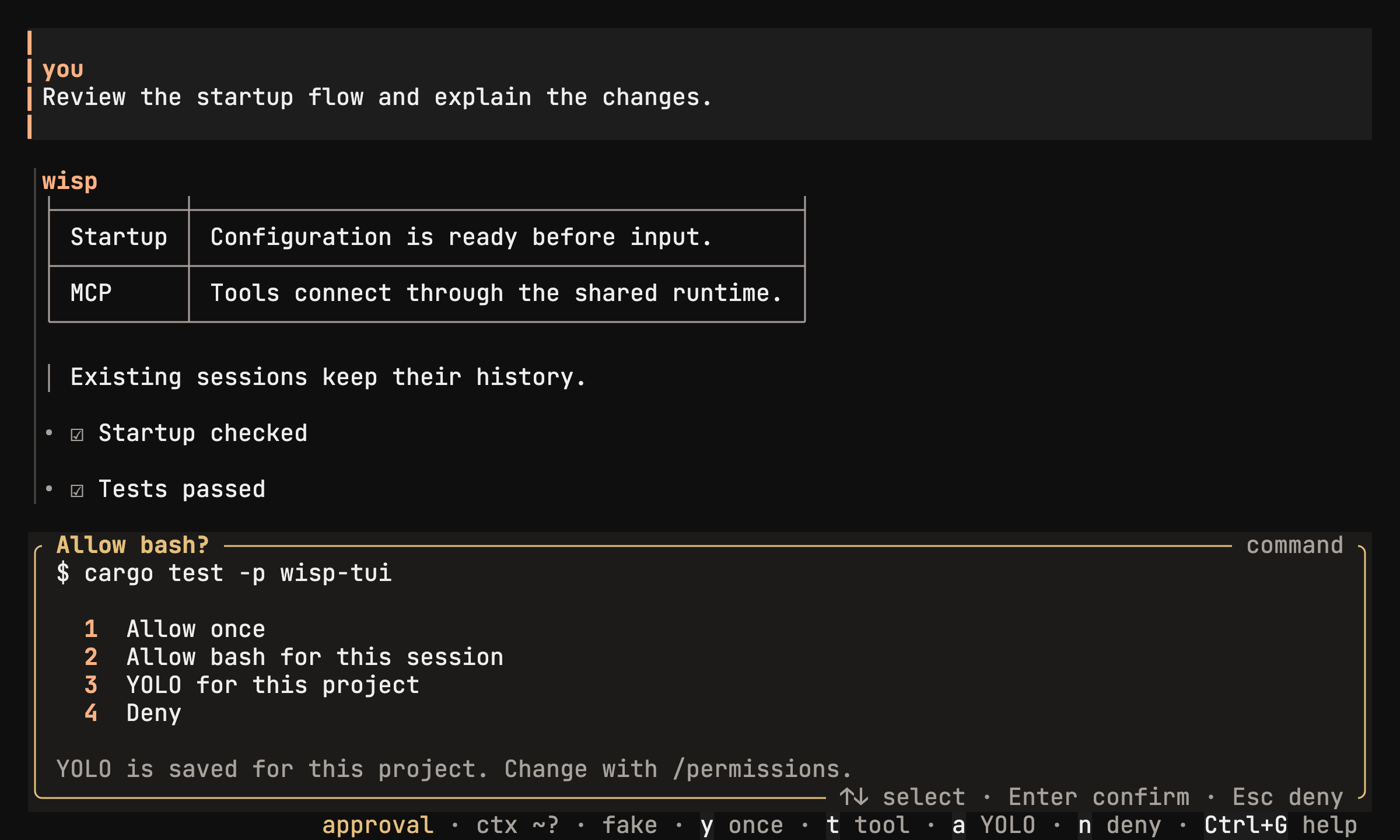
explain the architecture of this repository- Approvals stay explicit: Read-only tools run directly. Edits, writes, and shell commands dock
an approval panel above the footer with an inline diff or syntax-highlighted
$ commandpreview. Approve once (1), allow that tool for the session, save a fail-closed command-prefix allow rule for simplebashcommands inside the project (2/p), or deny (Esc). Manage saved rules and modes anytime in/permissions; see Tools & safety for the full policy. - Review changes per turn: Every editing turn ends with a change summary (
+N −M in K files). PressAlt+G(or click the summary row) to open/difffiltered to the files touched in that turn (comparing each file’s current working tree againstHEAD), select an individual edit card withF6andEnterfor its retained before/after diff, or run/difffor the full working tree. - Inspect the workspace side panel: Click
Session,Files, orBrowserin the top bar (or pressCtrl+P) to view live context, the turn/subagent waterfall (t), inline file previews (eto edit), or the built-in browser. - Run quick local checks inline: Prefix any line with
!(such as!git statusor!pytest) to run a shell command locally without spending a model turn. Output stays local unless you pressAlt+Sto attach it to your next prompt.
See the TUI guide for steering active runs, /verbosity, themes, and shortcuts.
One-shot and offline runs
Print mode runs one prompt and exits:
wisp -p "summarize the current changes"To verify the installation without credentials or a network model call, select the deterministic fake provider:
wisp -p "hello" --provider fakeAssistant text is written to stdout and lifecycle events to stderr. For machine-readable JSONL,
add --mode json.
Continue where you left off
Sessions are append-only JSONL files under ~/.wisp/sessions by default. Resume the newest session
or select one by path, filename, id, or id prefix:
wisp --continue
wisp --resume <session-id-prefix>
Next, learn how to steer, cancel, and approve while Wisp works, or browse the TUI guide and CLI reference. If something goes wrong, start with Troubleshooting & FAQ.
To connect external services, follow MCP servers & codemode: add and authenticate a server, then choose how its tools are discovered and whether read-only calls can be batched in scripts.