TUI commands
Connecting providers
/connect opens a provider connection panel. Use arrow keys to select a provider,
Enter to start its available API-key or device-code flow, d to disconnect stored credentials,
r to refresh, and Escape to close or cancel. API-key entry docks above the composer, shows a
cursor after the masked key and a character count so a paste visibly lands, and says when an
environment variable such as OPENAI_API_KEY is set, because that variable takes precedence over a
saved key. Device login displays the
short-lived user code and verification URL but never stores them in prompt or session history.
Choosing a model
Rust also supports /model while idle. The picker groups models by provider, disables unavailable
providers, and labels preview and legacy models. Use Up/Down, PageUp/PageDown, or Home/End
to select a model, Left/Right to choose its reasoning effort (including the provider default).
The effort control stays within the model panel’s border. Use Enter to apply, r to refresh, and
Escape or Ctrl+C to close. Navigating does not change the
runtime. Closing after submitting a selection does not cancel its application. The picker requires
at least 30 columns and 8 rows; a smaller terminal cannot apply a hidden selection.
The model and session pickers share a dialog frame with banded, bold selections, quiet descriptions
and right-aligned tags. Click a row to highlight it, then click the footer’s Enter hint to apply
that painted choice; the other visible footer hints work like their named keys. Hints that do not
fit are omitted whole rather than clipped, without changing the keyboard shortcuts. Short dialogs
use compact rows when needed to keep the selected model, effort control and notices visible.
For direct selection, use /model <model> [effort|-] or
/model <provider>::<model> [effort|-]. Custom model names pass through to the backend. - clears
an explicit effort. /provider <name> switches providers and restores that provider’s defaults;
bare /provider reports the current provider. These commands are rejected while a run is active,
so they cannot become steering or follow-up messages.
Successful Rust selections update the live session and save user defaults for later launches. Existing environment, CLI, and project settings keep their normal precedence over saved defaults. If saving fails, the applied live selection remains active and a warning is shown. Catalog discovery runs in the background; a failed catalog does not prevent prompts or typed model commands. If a successful configuration cannot report its selection, the footer marks the last confirmed selection until a fresh catalog succeeds.
Reloading settings
Edit ~/.wisp/settings.json or your trusted project’s .wisp/settings.json, then run /reload
while Wisp is idle. It reports Applied, Unchanged, Retained session choices, and
Restart required fields. A busy session rejects reload immediately rather than applying it
later. Invalid or unreadable settings leave the active configuration unchanged; a missing settings
file restores that layer’s defaults.
Reload supports provider, model, effort, context reserve, automatic compaction, web search,
codemode, and subagent settings. Explicit choices made in this session (for example /model,
/codemode, or /subagents) survive reload. CLI and process-environment values retain their normal
precedence, and project settings are still ignored until that project is trusted.
Credentials/auth paths, session storage, protected paths, retry and provider-connection settings,
MCP connections/exposure, process-wake policy, and TUI keybindings require a restart. Reload never
runs an edited MCP command or changes trust/approval grants. Use /mcp reconnect to explicitly
reload MCP connections. /reload does not reload source code, built-in instructions, skills,
project instruction files, .env, or environment changes made in another shell.
Permissions
Unlike print mode, the TUI exposes the full tool registry by default. Mutating and command tools still pause for approval (MCP server proposals offer only Confirm or Deny; see Asking Wisp to set up a server): approve once, allow that tool for the session, choose a saved project YOLO default, or deny.
Use /permissions in Rust to inspect and change the project default, or /permissions ask,
/permissions auto, /permissions auto-commands, and /permissions yolo. Auto edits approves eligible built-in workspace and
session-scratch edits on macOS/Linux, but still asks before commands and other mutations. Git
metadata, agent-control files, shared hard-linked files, and mandatory confirmations do not qualify;
protected-path and stale-write checks still apply. Each automatic grant is recorded and labelled
on the tool card. Auto edits checks the operation and destination, not the safety of the content.
The panel docks above the composer and marks the current mode; choose with
1 (Ask), 2 (Auto edits), 3 (Auto commands), or 4 (YOLO), or highlight with ↑/↓ and press Enter (there is no default highlight, because
saving a mode also clears temporary grants). Saved defaults and saved per-project command-prefix allow rules apply to subsequent launches in the
same canonical project directory and live in user-owned ~/.wisp/permissions/ files, outside the
repository. When a project has saved command rules, /permissions lists them below the four modes
so you can select one with ↑/↓ and revoke it with d, Backspace, or Enter. Command rules
only match simple single commands inside the workspace (never shell chaining, pipelines, subshells,
redirections, or broad folders).
Allow-once and tool-session choices do not persist; temporary session grants expire on /new or
switching to another session. Changing the default clears temporary grants. Startup --yes alone
is not saved. These choices do not change project trust or protected paths. In the home folder or a
folder above it, Auto edits, Auto commands, and YOLO apply for the session only and the panel says so; Ask is still saved.
Auto edits never grants arbitrary edits throughout a broad folder, though the session scratch remains
eligible. Saved Auto edits consent is edit-only and never enables command review.
Auto commands is a separate macOS-only opt-in with mandatory Seatbelt containment. It keeps
Auto edits’ file behavior and runs supported pytest/unittest, Cargo test/check/build, and npm test/build
forms inside the sandbox without model review. Fast-path test commands (pytest, python -m pytest/unittest,
uv run --no-sync pytest, npm test/run test, and cargo test when an ancestor Cargo.lock exists) run
with a read-only workspace and a fresh per-command TMPDIR/HOME/UV_CACHE_DIR deleted on exit, so
tests can create synthetic .git, .wisp, AGENTS.md, or .env fixtures and bind local Unix sockets
inside TMPDIR without weakening workspace protections. cargo test writes build artifacts to an isolated
session target cache with CARGO_NET_OFFLINE=true. Other eligible exact built-in bash run/start
calls go to an independent reviewer. The reviewer makes a
fresh, no-tools request on the active provider/model, without conversation history, project
instructions, or repository file contents. Each run allows at most eight review requests, each
with a 20-second deadline; these requests can incur additional model charges. Allow runs only that
exact call, Ask uses the normal permission dialog, and Deny does not execute it. Missing, malformed,
truncated, failed, or timed-out answers ask you. Changing permissions/project invalidates an
in-flight assessment; it does not become a grant if the same mode is re-enabled.
Only a conservative subset of simple local test/build and Git inspection commands is eligible.
Common safe short options such as -rN, -ra, -qq, -vv, -n4, -j4, and git status -sb are
accepted; shell composition, expansions, redirects, sensitive/unsupported options, publishing, explicit
credential/control paths, and outside-workspace paths require human approval before any model
review. uv run needs --no-sync (for supported Python runners only); use Bash’s cwd argument for a workspace subdirectory rather
than shell composition. Poll/cancel is automatic only for sandboxed jobs owned by this conversation
under the original, still-active consent. Other jobs, MCP mutations, custom/replacement tools,
and mandatory confirmations retain their existing approval flow. Automatically approved commands
and their children have restricted filesystem access, a controlled environment (PYTHONUNBUFFERED=1,
CARGO_NET_OFFLINE=true), and no TCP/UDP network
access. Sandbox setup failure or requests for broader access require explicit human approval;
there is no silent unrestricted retry. Ask, explicit grants, and YOLO retain unrestricted execution.
Build commands and reviewed commands can still modify allowed workspace files. Pre-existing hardlink aliases remain a known
limitation: an allowed alias can read or (on writable commands) modify a file whose other name is protected or outside
the workspace. This is not complete file/credential isolation. TCP localhost servers, network-dependent
tests, PTY/ps tests, and shared-cache writes may need human approval. Saved consent is sandbox_commands_v1; earlier command-review
consent is not reused, so select this mode again to opt in. Reviews, reasons, and available
usage/cost are saved; incomplete/cancelled requests remain cost-unknown, not zero-cost. Tool cards
distinguish sandboxed test/build grants, reviewed commands, and automatic file edits.
Use /codemode presentation codemode_only or /codemode presentation direct_and_codemode
to choose the model-facing tool presentation independently of availability. The picker shows
both the saved choice and a direct-tool fallback when codemode cannot be offered.
Use /codemode to choose when runs offer the codemode
tool: automatic (when a script may call one of a run’s MCP tools), always, or never. /codemode always
and the other settings apply one directly. The panel docks above the composer like
/permissions, marks the current setting, and says whether the next prompt offers the tool.
When the session has MCP tools, it also says how many of them a script can call, and flags it
when that is none. A script can call only tools marked "read" in their server’s tool_safety,
so mark a server’s read-only tools there to change the count; automatic mode turns on when it is
above zero.
Choose with 1–3, or highlight with ↑/↓ and press Enter. The choice applies from the
next prompt and is saved as the user codemode setting in ~/.wisp/settings.json, so it
survives restarts; wait for the current operation to finish before changing it. WISP_CODEMODE
still decides the setting when Wisp starts, and the panel says so when it is set. Without the
codemode extra installed, the panel says the extra is needed, and no run offers the tool. The
side panel names codemode as on or off for the next prompt, except while the automatic setting
leaves it off.
Use /subagents to set up subagents
and see what they get. The panel docks above the composer like /codemode. Highlight a row with
↑/↓ and press Enter:
- Subagents turns them on or off.
/subagents onand/subagents offdo the same directly. - Model opens the models of the session’s provider. The one you choose is used by subagents
that start fresh; “Same as the session” clears the choice.
/subagents model <name>and/subagents model -do the same directly. A model the provider does not have is refused. - Fresh and Fork are the two ways a subagent starts. Below the rows, the panel describes
the highlighted one as the next prompt would set it up: its model and effort, the tools it can
use and the ones it is refused, its limits, and the start of its instructions.
Enterorpopens the full instructions;Escreturns.
Both settings apply from the next prompt and are saved as the user subagents and
subagent_model settings, so they survive restarts; wait for the current operation to finish
before changing them. WISP_SUBAGENTS and WISP_SUBAGENT_MODEL still decide the settings when
Wisp starts, and the panel says so when one is set. The panel also says whether the next prompt
offers the spawn_agent tool, and flags a saved model the current provider does not have.
Managing MCP servers
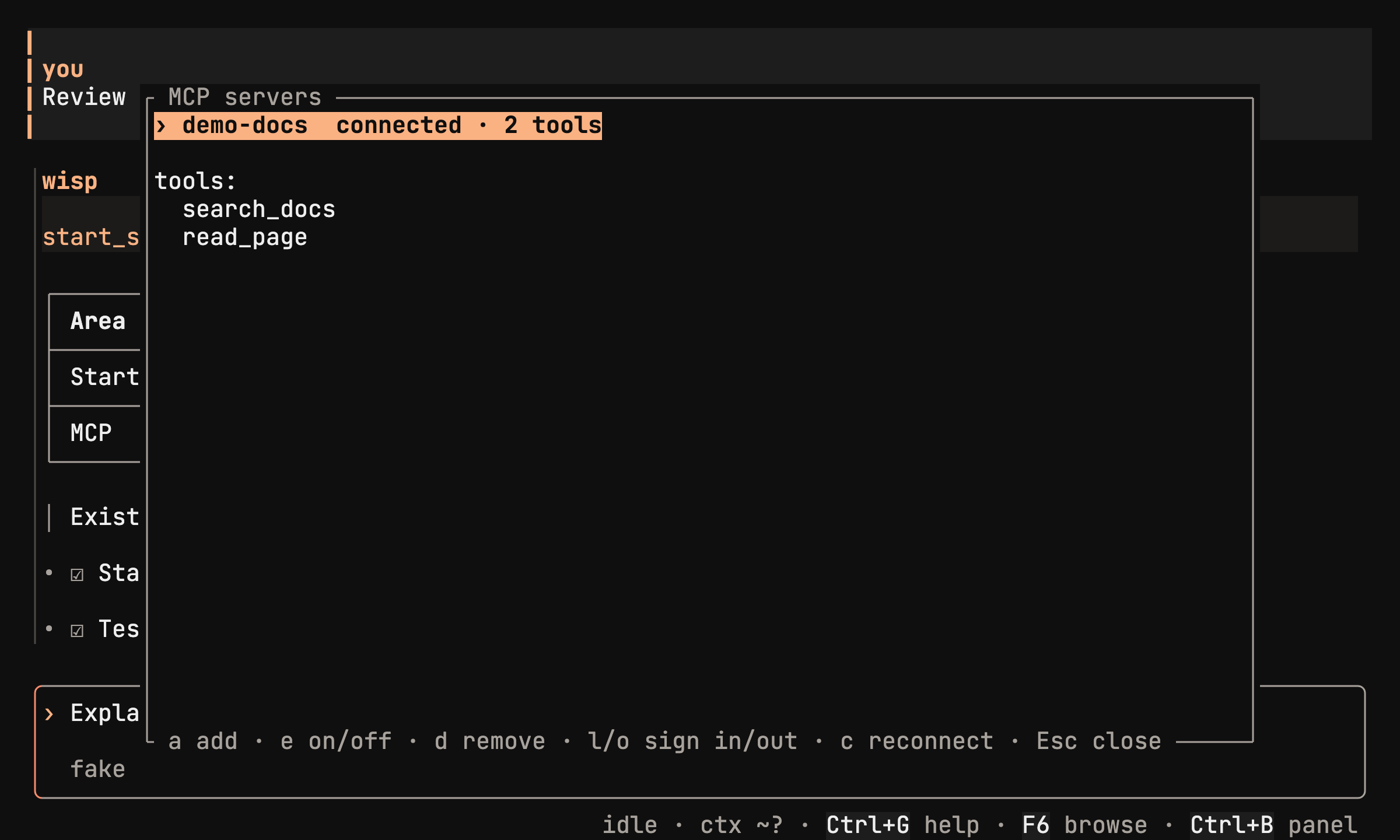
Open /mcp to inspect server status and tools, add or remove a server, or sign in. The
MCP guide’s panel walkthrough lists all keys, explains snippet
import and masked credentials, and distinguishes reconnect (c) from status refresh (r).
Adding or enabling a server needs confirmation; reconnecting clears per-tool session grants.
Slash commands
/help                                     show contextual help
/init                                     inspect the project and create a root AGENTS.md
/connect                                  open the provider connection panel
/provider [name]                          show or switch provider (resets model to default)
/model [provider::model] [effort|-]       switch model and optional reasoning effort
/search [on|off]                          show or toggle provider-native web search
/reload                                   reload supported settings files while idle
/new                                      start a fresh session and clear the screen
/resume [session-id]                      browse or resume a persisted session
/name <display name> | /name --clear      name the current session or clear its name
/clone                                    clone the current session
/tree                                     browse the session tree and switch branches
/unrevert                                 restore the previous branch after navigation
/cd <path>                                work from another folder, entering its project if needed
/ps                                       focus the running background processes in the side panel
/browser [interact | live [address or search] | window [address or search]]  open the Browser view, take over, or open a live tab/window
/kill <number|process-id>                 stop a background process the agent started
/diff                                     review working-tree changes against HEAD
/compact [instructions]                   summarize older context while preserving the JSONL audit
/context [auto on|off]                    show or toggle compaction policy
/queue                                    inspect and manage steering and follow-up queues
/plan                                     switch to read-only planning mode
/build                                    switch to normal build mode
/permissions [ask|auto|auto-commands|yolo]  inspect or change the project permission default
/codemode [automatic|always|never|presentation direct_and_codemode|codemode_only]  inspect or save availability and presentation
/subagents [on|off|model <name>|model -]  inspect or save the subagents settings
/history                                  search prompts submitted in this TUI run
/theme [name]                             preview or select a curated color theme
/logo [name]                              preview or select a startup logo
/verbosity [low|medium|high]              set transcript verbosity (low, medium, or high)
/update [check|install]                   show instructions for updating outside the TUI
/skills                                   inspect loaded skills and discovery diagnostics
/mcp                                      manage MCP servers: add, remove, enable, disable, reconnect
/quit                                     quit the TUI
/exit and :q are aliases for /quit. Use /connect to inspect provider connections and
press d in that panel to disconnect; /auth, /disconnect, and /logout are not supported
in the Rust TUI. /update, including its check and install forms, only opens update guidance:
quit the TUI and use wisp update --check or wisp update in your shell.
/init asks the active model to inspect repository documentation, manifests, CI configuration, and
source layout before creating project-specific guidance. It only works in build mode, uses the normal
project-trust and write-approval flow, and refuses to replace an existing AGENTS.md or AGENTS.MD.
The final write is create-only, so a file that appears during inspection is preserved. The Rust TUI
offers /init only when the backend includes it in command discovery and delegates the complete
workflow to that backend.
Context, skills and MCP browsers
The header shows context usage. /context reports the budget, usage, cost and compaction details;
during a run, session totals show the last refreshed snapshot. When idle, /context auto on|off
changes automatic compaction for the current process, and /compact [instructions] compacts the
selected session. Ctrl+C cancels a manual compaction.
/skills lists skill descriptions and sources, and d shows discovery diagnostics. Enter inserts
the selected /skill:name before your draft, ready to edit and submit. Slash completion lists
commands first, then skills, and typing /skill: narrows it to skills; Tab or Enter accepts a
suggestion, then Enter submits. /mcp shows server status, registered tools and connection
errors. In both browsers r refreshes and Esc or Ctrl+C closes; both stay available while a
prompt is running.
Browser viewport and interactive takeover
Click the Browser tab in the top bar to open the live browser. With no page open, the view
shows an address bar, ready for typing. Type an address or a search and press Enter. Wisp
starts installed Chrome or Chromium only then, and only in a trusted project. In an untrusted
project the view says the live browser is unavailable. Text that is not an address goes to your
search engine, set with
browser_search_engine.
Below the address bar, Recent lists the last addresses you opened, newest first. Press Down
to move into the list and Up to move back, then Enter to open the highlighted address, or
click one. Typing returns to the address bar. Esc returns focus to the prompt and leaves the
view open; Ctrl+L focuses the address bar again. Wisp keeps recent addresses with its
saved browser profile, and
wisp browser clear removes them. Searches are not remembered.
/browser live <address or search> opens a page the same way from the prompt. Drag the dock
border to adjust its width. Wisp holds the last page image while you drag, then Chromium reflows
the page to the width where you release it. Use Kitty or Ghostty graphics in true color for
high-resolution page images.
- Click the address bar or press
Ctrl+Lto edit the address. Type an address or a search and pressEnterto load it in the current tab, orEscto cancel. Use the toolbar buttons to go back, go forward, or reload. - Click the page or use
/browser interactto type while Wisp is idle. While the page has focus,Alt+LeftandAlt+Rightmove through history,Ctrl+Rreloads, andEscreturns focus to Wisp. - Switch to
SessionorFiles, or hide the pane, to close the tab; theBrowserview then shows its address bar again. Wisp keeps site sign-ins in its saved browser profile for the next launch. The live tab is for manual browsing, and MCP tools continue to use their own browser.
The top bar always shows the Session, Files, and Browser tabs. Click a tab to open the side panel on
that view, or click the highlighted tab to close the panel. When a browser MCP server such as
Playwright (@playwright/mcp) or Chrome DevTools (chrome-devtools-mcp) is connected, Wisp updates
the Browser view whenever the agent captures a page screenshot.
/browseropens theBrowserview (as an overlay on narrow terminals) and focuses its address bar when no page is open. Running it again keeps the view open; click the highlighted tab to close it./browser interact, pressingiwhile theBrowsertab has focus (F8), or clicking inside the viewport image enters interactive takeover (INTERACT) while the session is idle:- Clicks and wheel scrolls map from terminal cells onto the browser viewport.
- Typed text and pasted snippets are forwarded to the active page without echoing typed values into the transcript or session history.
- Navigation and editing keys (
Enter,Tab,Backspace,Delete, arrows,Home/End,PageUp/PageDown,Alt+Leftback,Ctrl+Rreload) control the page directly. - Press
EscorCtrl+C(or click outside the panel) to leave takeover. On your next prompt, Wisp attaches a brief, secret-free summary of the takeover so the model knows to re-inspect the page before acting.
- Side-panel sizing: Drag the left border of a docked side panel wider (up to 60% of the
terminal width), or focus the side panel (
F8) and pressf(or click[Expand]/[Restore]at the top of the panel) to expandSession,Files, orBrowserinto a large centered overlay on any terminal size. - Terminal image protocols: Wisp auto-detects Kitty
U=1Unicode placeholders (Kitty and Ghostty in true-color mode), classic Kitty graphics (WezTerm or 256-color), iTerm2 inline images, Sixel, and Unicode half-blocks (tmux,NO_COLOR, 16-color, or fallback terminals). SetWISP_TUI_IMAGEStokitty-unicode,kitty,iterm2,sixel, orhalfblockto override detection.