TUI sessions and scrollback
Reviewing tool output and changes
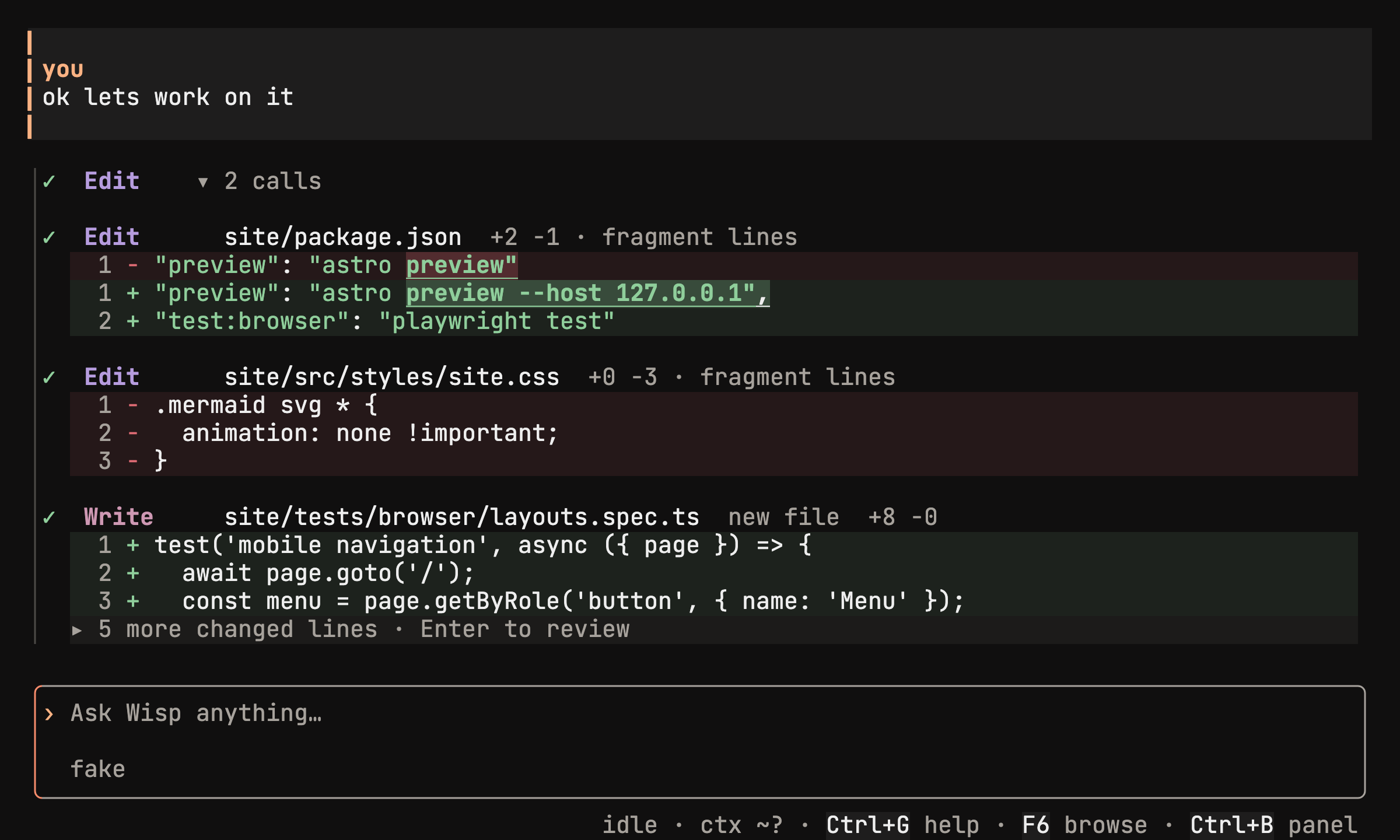
Ctrl+G lists every resolved binding. Successful edit and write cards show a bounded inline diff
preview under the action line, which carries the change counts (and new file for a created file).
Inline previews use one full-width column at every terminal size, including additions-only and
deletions-only changes. Rows keep stable +/− signs, quiet themed backgrounds, and syntax coloring
where the file extension is recognized. A compact line-number gutter shows the old line for a
removal and the new line for an addition or context; edit fragments use fragment-relative
numbers because the edit arguments do not carry file positions. Previews show up to three changed
lines with nearby context. Larger previews end at a hunk boundary when possible; an explicit
omission says how many changed lines remain and points to Enter for review. Wrapped continuations
keep an indented gutter. The full retained edit remains available in review, including split view.
Visible diff lines and shell-output tails keep their normal colors up to the omission marker;
the marker identifies hidden content without fading the displayed text.
Separate hunks are divided by ⋯, and ⏎ trailing newline added/removed appears only when the
final newline actually changed. Changed words have stronger backgrounds, bold, and underline;
monochrome retains the non-color emphasis.
Enter opens review of this tool edit, before ↔ after. [ / ] jump to the previous/next hunk;
Tab / Shift+Tab move to the next/previous available retained edit. s toggles side-by-side review
when the content area is at least 100 columns wide (narrower terminals use unified review).
c shows/hides retained unchanged context. Arrows, Page Up/Down, Home/End scroll; Esc returns to
browse. This view is not a cumulative working-tree diff against HEAD, and cannot recover context
that was not retained. Full file locations remain in the review heading.
Use /diff for a separate working tree ↔ HEAD review. It reads the current
repository through the backend, combines staged and unstaged tracked edits, and
lists untracked files separately without reading their contents. A header row shows
the file count, the tracked files’ +N −M, how many files Wisp edited this session,
and the snapshot’s age. The changed-file list groups folders with counts (a folder
holding only one folder joins it, as src/wisp/providers/) and gives each tracked file a
churn bar; Enter expands a folder or focuses its file diff. Files changed by a Wisp
edit or write call in this session carry ◆, and folders with none say
not from this session; Enter in the diff of a ◆ file jumps to its edit card.
Each hunk header is a bar naming the definition it falls in, as Git’s do, and the
unchanged lines between hunks fold into one ⋯ N unchanged lines row. The diff is
split where the pane is at least 100 columns wide. Tab switches between the file list
and diff. [ / ] move between hunks, s switches split and unified, c shows every
unchanged line, and scrolling works as in retained-edit review. On narrow terminals,
Tab switches between full-width file navigation and the selected diff. Esc closes the view.
Press r to capture a new snapshot. The view is read-only and does not watch the
filesystem: a snapshot may become stale while Wisp or another program edits files.
Protected and unsafe paths are omitted. Binary, oversized, or unreadable content
receives an unavailable notice; symlinks, submodules, and files above the scan
budget may be omitted. Reports and rendered previews are
bounded, with partial/truncated labels; counts cover available text only. A Git
working tree with a HEAD commit is required. The comparison reads disk text and HEAD blobs with built-in newline/ident
normalization, without executing Git clean, external-diff, or textconv helpers.
Files requiring filter or working-tree-encoding transformations are omitted and
mark the snapshot partial; unchanged files beyond the scan budget may also be omitted.
Other tool and process previews stay collapsed to an action line. MCP summaries name the server,
tool, and primary subject, such as linear/list_issues · astro; pagination and other bounded
arguments remain in expanded detail. Consecutive calls to the same MCP tool show a compact count,
such as linear/get_issue · 5 times. Expanding the group reveals each call. While a call is open,
the group follows its subject with · 4 of 5 done; approval, denial, and failure stay visible.
Consecutive read / grep / find / ls cards group as exploration activity. Thinking streams
as a collapsed thought row.
A collapsed card keeps its action to one row, ending in … when needed; status and counts stay
visible. F6 browses visible rows: Right expands, Left collapses, and Enter opens retained file
detail. Paths under the launch directory display relatively. Familiar shell commands use concise
summaries such as Python tests, Rust build, or npm test · npm run check; expanding shows the
original bounded command. Process rows reuse the originating task name, such as
Browser tests · passed, with process IDs, poll counts, and exit codes in expanded detail.
Expanded shell and process cards show a framed output tail without fading. Click the
N earlier lines row, or select it with F6/Tab and press Right or Enter, to show earlier
retained output. Left folds those lines back while keeping the tail open. Output lost to
retention limits or backend truncation is explicitly marked incomplete or unavailable; expanding
cannot recover it. Routine tool rows use blank spacing rather than full-width rules. The footer
shows the browse key once (F6 browse) whenever the transcript has rows, instead of a hint under
every card.
While following the tail, the latest user prompt stays pinned at the top of the conversation pane
until you scroll away. The live view contains only that prompt and the replies and tools that
follow it; older turns remain in scrollback. A clipped assistant reply keeps its wisp label
visible.
Before reply text arrives, a working row animates below the transcript, for example
⠹ Thinking · 12s · Esc to interrupt. It shows a braille spinner, what the agent is waiting on
(Thinking while reasoning streams, Working otherwise, or Compacting context), how long the
current command has run, and the interrupt key; on a narrow row the interrupt hint and then the
time are dropped rather than clipped. Once text starts streaming, the working row disappears. If a
prompt fails, the reason stays as a red ✗ Prompt failed: … row under the transcript until the
next command starts, and the composer stays usable, so you can fix the cause and retry; for missing
credentials the message names /connect. Only a lost connection to the backend ends the session.
The wisp label stays visible at the live tail during intervening tool calls, and the working row
returns after the final result while another model step is pending. A completed poll whose
background process remains alive does not suppress this separate model activity. Compaction keeps
its separate activity row.
Tool cards open with a marker and a bold action. Failed calls use ✗ and say what failed;
⊘ marks a denied or cancelled call, with the outcome spelled out. A pending approval has a
steady bullet and a quiet awaiting approval tag after the command or path. Only the tag has
a tinted background, and it disappears when approval is no longer pending. The first result
row under an expanded card starts with └. Back-to-back collapsed cards are separated by a thin
rule, so a run of tool calls reads as one list, and an open group’s header is separated from its
first call by the same rule; a card showing its results keeps a blank row before the next card, and
a blank row separates your prompt from the reply or cards below it.
A plain click on a card’s action line, a grouped row, or a thought header expands or collapses it,
as Right and Left do while browsing with F6. The click keeps typing in the prompt; while
browsing, it also moves the selection to that row. Clicks on result rows only start a text
selection. A card selected with F6 looks like the rest and ends with (click to expand) or
(click to collapse), or (→ to expand) and (← to collapse) when mouse capture is off. While
the run is active, an in-progress card’s marker is an animated braille spinner; finished and
approval-waiting cards stay steady. Because the spinner changes shape rather than brightness, it
reads the same in monochrome mode. An in-progress card from a resumed session shows a steady ●.
The footer keeps a static status label. A scrollbar on the right shows the approximate position in
retained history without laying out every offscreen row. Keyboard scrolling and wheel/trackpad
scrolling update it.
Resuming and starting sessions
The Rust TUI validates the live RPC handshake and events, supports prompts, approvals,
project trust, cancellation, steering and follow-up queues, a virtual Markdown/tool/diff transcript,
and complete saved session history.
/resume opens a searchable picker with backend-owned pages of up to 50 persisted sessions;
/resume <id> still selects directly. Type or paste to search current names and session IDs
(case-insensitive literal substrings, not transcript content). Ctrl+U clears the query.
Use arrows, PageUp/PageDown, and Home/End to move within the page; Ctrl+Left/Ctrl+Right
loads the previous/next page. Enter resumes the highlighted, rendered session; Escape closes.
Ctrl+R refreshes from the first page, and Ctrl+Y retries the current page after an error.
Narrow layouts abbreviate Ctrl as ^; Ctrl+G shows the full action hints.
The picker shares the model dialog’s frame: names sit above muted session IDs and update times,
with entry counts aligned right. Clicking either line highlights that session; clicking the visible
Enter footer hint resumes it only after the new highlight has been painted. The other visible
footer hints are clickable too, including page navigation when a previous or next page exists.
Search and navigation preserve the composer draft and transcript viewport. Submitting /resume
consumes that slash command, not the search text. A deleted session leaves the picker open for recovery.
Catalog changes invalidate pagination cursors: refresh rather than continuing through shifted rows.
/new deselects the current session and clears the local transcript after the backend confirms it. Startup and resumed history collect every transport page and build the
complete transcript once before enabling input. Conversation entries are retained without a history
cap; rendering caches and compact tool previews remain bounded. Large messages render in full as
plain text. Very large sessions therefore require more startup time and memory.
Sharing a saved session
Run /past-sessions to choose a saved session to share with your next prompt. Search by
name or ID and press Enter on the highlighted session. The picker closes and a Saved
chip appears above the draft. Use /past-sessions clear to remove the attachment.
Ask your question in the current conversation. Wisp can read bounded pages of user and assistant text from the selected session during that prompt. Excerpts it reads can become part of the current conversation. The attachment is consumed when you send the prompt and is cleared if you switch sessions or working directories first.
Changing directory
/cd <path> moves the session to another folder: an absolute path, ~, or a path relative to the
current folder. As you type the path, the composer lists matching folders from the local file
system; Tab fills in the selected one, and Enter moves once the path names a folder. Hidden
folders are listed only when the name you type starts with .. A folder outside the project
enters the project that contains it, with that project’s settings, skills, permission mode, and
trust; an undecided project asks for trust at the next prompt. /cd is refused while a run or
another operation is in progress; run it again once the session is idle.
Each move draws a ── Working in <folder> ── divider below the last reply; moves that end where
they started draw none. Resuming the session draws it again from the session file and works from the
folder it last moved to. The footer and side panel follow the new folder.
Session branches
The Rust TUI also exposes direct persisted-session workflows: /name <display name> and
/name --clear, /clone, /tree (also Ctrl+T), and /unrevert. The /tree picker uses Up/Down,
PageUp/PageDown, Home/End, Enter to navigate, f to fork a selected user-message node,
and Escape to close. It requests 200 append-ordered nodes per page and retains only the newest two
pages (400 nodes); an omission row appears after the oldest page is evicted, and reopening /tree
starts again from the first page. Forking restores the selected prompt after the fork’s authoritative
history loads. Navigating to a user-message node likewise restores its editable prompt after loading;
prompts that exceed the editor limit are rejected explicitly rather than truncated.
Native wheels ship for the two packaged targets. Transcript search remains a follow-up; composer selection and clipboard actions are keyboard-driven. Drag over the transcript to copy it; see the mouse controls below.
Mouse navigation and scrollback
Rust mouse navigation is on by default, so wheel and trackpad scrolling can reach earlier turns even though the live view starts at the current prompt. Disable it for a launch with:
WISP_TUI_MOUSE=0 wisp tuiUnset enables capture. 1, true, and on also enable it (case-insensitive); 0, false, off,
an empty value, and unknown values disable it. This is Rust-local presentation state, not a backend
setting or persisted preference.
- Each wheel/trackpad report scrolls the conversation one line, without moving composer focus; a trackpad swipe sends many. It scrolls wherever the pointer is in the conversation, including over the composer. Reading earlier content remains anchored while output streams; paging uses the existing bounded history requests. In a long session, history from earlier in the live view is reloaded only while Wisp is idle: scrolling into it during a reply shows “Earlier history loads when this reply finishes” and continues once the reply ends. Over an open popup, the wheel moves its selection or scrolls its report instead. It does not scroll the conversation behind the popup. The session tree requests its next page when wheeling past the last retained node.
- While you are scrolled back, a
↓ latest · Ctrl+Endlabel (↓ new outputonce output arrived meanwhile) sits on the blank row above the composer. Click it, or press the key, to return to the latest output and follow it again. It is not clickable while an approval or trust prompt is docked; the key still works. In terminals too short for that row, the footer showsscrolledornew ↓instead. - Left-click a visible picker row to select it. Clicks do not activate choices: use
Enterto apply a model/theme/logo, insert a file/skill reference, or navigate a session. Model selection remains locked while an application is pending. In the file tree, select a directory and useEnterorRightto expand it. - A left click outside a popup dismisses it like
Escape, including cancelling an active device login or rolling back a theme preview. That click is consumed, never passed to the background. - With no popup open, drag over transcript text to select it; releasing the button copies the
selection to the clipboard (natively, and through OSC 52 so it also works over SSH) and shows
“Copied N chars to clipboard.” A plain click copies nothing. The selection covers what is on
screen, row by row, so a wrapped line copies as separate lines and dragging past the edge does
not scroll. Wheel scrolling, resizing, or an approval or popup appearing clears it; text that
moves under it otherwise (streaming, keyboard scrolling) is copied as shown at release. Inside
tmux, OSC 52 needs
set-clipboard on. Your terminal’s own selection still works with its bypass modifier, such asShift-drag in Ghostty. - With no popup open, click in the main composer to position its cursor at a grapheme boundary. Tabs, wide/combining characters, and horizontal/vertical editor scrolling retain their source positions. At the minimum 30×9 size, a tall draft keeps one editable row; footer details may be omitted. Stale coordinates after resize, text replacement, or catalog refresh cannot select a new unseen target.
While an approval panel is docked, a plain left click on a painted choice row answers it (clicks
outside painted choices stay inert); project-trust decisions remain keyboard-only. The wheel and the transcript scroll keys (PgUp/PgDn, Ctrl+Up/Ctrl+Down,
Ctrl+Home/Ctrl+End) still move the conversation so you can review what led to the request; a
custom binding never takes a key the prompt uses. All mouse input is ignored when a failed
cancellation response requires keyboard recovery. Horizontal wheel
actions and middle/right-click actions are not implemented. For the terminal’s own selection instead
of Wisp’s, set WISP_TUI_MOUSE=0 or use your terminal’s documented modifier override where
supported. Wisp requests button, button-drag, and SGR mouse reports, never all-motion tracking;
native and launcher cleanup restore the terminal after exit or failure.
The Rust transcript retains the complete saved conversation. When new output arrives while you are
reading earlier content, the viewport stays anchored; press Ctrl+End to return to the live tail.
Resuming long sessions
Latest history · loading… shows recent conversation text while Wisp loads the complete
transcript. The preview stays at the newest text when you resize. It is read-only: search,
scrollback, and tool-card actions use the completed transcript, not the preview. On a trusted
--continue or --resume launch, Wisp can show this text before the first history page arrives.
If it cannot verify the saved session quickly, it uses normal history loading instead.
Selecting a session from /resume, or running /resume <session-id>, loads the complete saved
active-path transcript before input resumes. PageUp and PageDown scroll through the retained
conversation; no history cap clips older messages. A failed or stale history response reports an
error rather than presenting a partial replacement as complete.
Historical file-tool cards keep bounded previews. Press F6 to browse visible cards and Enter to
open detail; when a persisted preview was clipped, the Rust TUI fetches that one exact result on
demand and releases it when the detail view closes. It does not cache historical detail or read JSONL
directly, and cannot recover bytes that the tool truncated before persistence.
Every persisted message row is represented, but representation is logical rather than one widget per
JSONL row. A tool request and its result share one tool card. Repeated process start, poll, cancel,
and completion rows for the same process share one process card; expanded diagnostics report the poll count.
Use F6 to browse visible cards, Left/Right to collapse or expand one, and Enter to open its
retained detail.
This deliberately trades /resume cold-start time and metadata memory for reliable upward scrolling.
Output bodies and tool arguments use bounded previews during initial loading. An on-demand detail
load returns the exact text stored in JSONL; it cannot recover bytes truncated before persistence.
Rewind to a prompt
With the composer empty and the run finished, press Esc twice quickly. The picker lists
your prompts on the current branch, newest first. Select one with the arrow keys and press
Enter to fork immediately before it. The selected prompt and its images return to the
composer for editing. Submit when ready. The original conversation is available in
/resume, and files on disk keep their current contents. Press Esc to dismiss the picker.
Prompt history
Press Ctrl+R or run /history to search the prompts submitted in the current TUI run, including
accepted steering and follow-ups. Search ignores case and repeated whitespace and covers the first
16,384 normalized characters of each prompt; restoring a prompt keeps its complete original text.
Enter replaces your draft with the selected prompt without submitting it, and Esc, Ctrl+C or
Ctrl+R closes history and keeps your draft. History survives session switches and is cleared when
the TUI exits. It holds up to 100 unique prompts within a 4 MiB text budget and evicts the oldest
first.
The index is memory-only; /history does not create a separate on-disk cache. Submitted user
messages still become part of the active session’s persistent JSONL transcript under the configured
session directory. Do not put secrets in prompts, and delete or protect session files according to
their contents.